
See what the notch hid or a software island covered
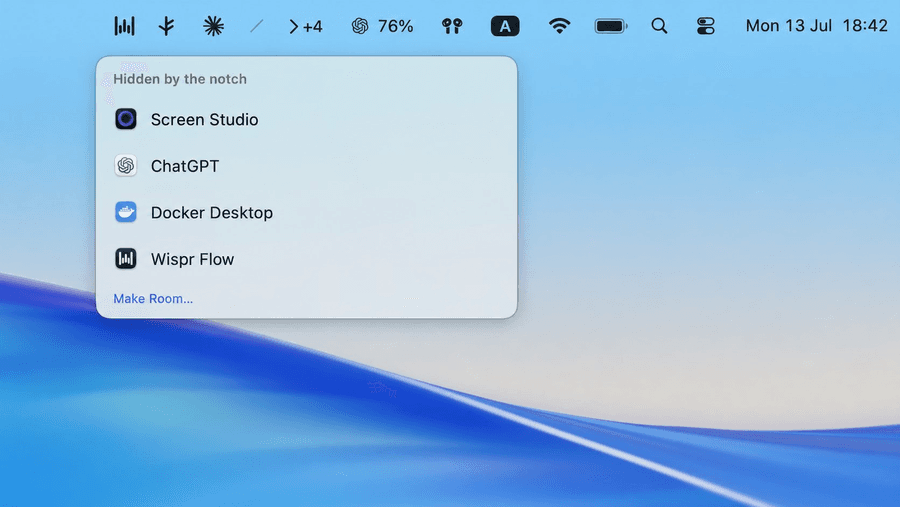
A physical camera notch can make macOS drop menu bar icons, while a software island can cover them on any display. Pelmet counts the affected icons, shows +N above its chevron, and names every one in a frosted panel called the Shelf.
How it works
Detection without a single permission
The Shelf is built on measurement, not observation. That distinction is the whole reason it needs no permissions.
01
Measure the space
macOS publishes status-item and overlay geometry as public metadata. Pelmet combines the physical safe area with the calibrated resting width of an enabled software island.
02
Count the covered items
Pelmet classifies the status items that do not fit beside the obstruction. That number becomes the +N badge above the chevron, the overflow indicator macOS itself never gives you.
03
Name them
Each hidden item is resolved to its owning application, so the Shelf shows a real app icon and a real name. No pixels are captured, so there is no Screen Recording prompt.
Using it
Two ways to open the Shelf
- Click the count. When the chevron shows +N, that badge is the button.
- Press ⌥⌘N. Opens the Shelf from anywhere, whether or not a count is showing.
- Follow “Make Room…” at the bottom of the panel to reach the settings that free up menu bar space.
What it is not
Never a screen capture
A screenshot-based panel would be simpler to build and would show the icons pixel-perfectly. It would also mean asking for Screen Recording permission, putting a purple recording indicator in your menu bar, and giving a background utility the ability to see your whole screen.
Pelmet does not make that trade. Rows are drawn from the app icon and name, which is enough to answer the only question that matters: which app went missing.
Read the full privacy positionFAQ
Shelf questions
- Does the Shelf need Screen Recording permission?
- No. The Shelf lists hidden items by their real application icon and name, read from public window metadata. It is not a screenshot of your menu bar, so macOS never prompts for Screen Recording and the purple recording indicator never appears.
- What does the +3 next to Pelmet's chevron mean?
- Three menu bar items do not fit beside the physical notch or intersect the calibrated resting width of an enabled software island. Click the count to open the Shelf and see which apps they belong to.
- Can I open a hidden item straight from the Shelf?
- For compatible items, yes — if you turn on the optional one-click access feature. Pelmet uses only the actions an item advertises through macOS Accessibility, and never moves your pointer.
- Why can no other menu bar app do this?
- Most menu bar managers hide icons deliberately, so they have no way to distinguish that from macOS hiding or another overlay covering them. Pelmet compares public window geometry with the usable menu bar space and reports the difference.
Related: why the notch hides your icons and how to fit more icons in the menu bar.
Stop guessing what disappeared
Install Pelmet and the next time a notch hides an icon or a software island covers one, you will know its name.
$brew install --cask ismatBabirli/pelmet/pelmet